Pages

Friday, November 4, 2011

Enable Virtual Wi-Fi on your PC


Windows 7 includes a little-known new feature called Virtual Wi-Fi, which effectively turns your PC or laptop into a software-based router.

What is Virtual Router?

Virtual Router is an open source software based router for PCs running Windows 7 and its freely available for users. 
Through Virtual Router, users can share their internet connection with any Wi-Fi device (Laptop, Smart Phone, iPod Touch, Net book, wireless printer, etc.) 
These devices connect to Virtual Router just like any other access point, and the connection is completely secured using WPA2 (the most secure wireless encryption.). 
By using Virtual Router you can establish most secure wireless access point without any cost.

Where can Virtual Router be used?

  • Home
  • Office
  • School
  • Airport
  • Bus Station


Absolutely Anywhere you can use it!
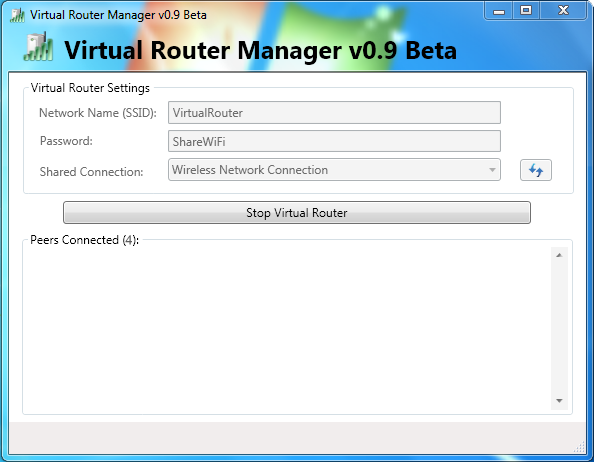
Features of Virtual Router Manager :
  1. Added Installation Check for Windows 7 / 2008 R2 or later
  2. Added ability to customize the icon displayed for a particular device / connected peer. To do this, either "double click" the connected peer, or "right click" and select "properties".
  3. Added Network Name (SSID) and Password Field Validation. SSID can not be longer than 32 characters, and Password must be at least 8 characters and no more than 64 characters.
  4. Persist SSID and Password across executions so that the user doesn't have to type it in every time.
  5. The First time Virtual Router Manager is run the Password/Passphrase field is blank. This is to encourage users to enter their own password instead of just using the "default" value in an effort to help increase the overall security. This way there is no "default" password for hackers to try connecting with.
Note : Virtual Wi-Fi can be done without using any software but this is the simplest and secure way to create an Virtual Wi-Fi Router


Easy way to Write Protect a USB Drive


Protect PAN Drive

All you have the question that how to write protect a USB drive so anybody can't copy/paste data on your USB/PAN Drive, 
This is possible with the given Batch Script Code -

:main
@echo off
cls
echo. & echo. & echo.
echo USB Write Protect program
echo ________________________________
echo. & echo.
echo 1. Lock the USB Drive
echo 2. UnLock the USB Drive
echo 3. Exit
echo.
set/p “ch= [>] Enter: “
if %ch%==1 goto lock
if %ch%==2 goto unlock
if %ch%==3 goto exit
goto main
:lock
cls
echo. & echo. & echo.
echo [+] Attention:
echo.
echo Make sure that there is no USB Drives inserted.
echo.
echo ————————————————
pause
reg add HKLMsystemcurrentcontrolsetcontrolStorageDevicePolicies /t reg_dword /v writeprotect /d 1 /f
pause > nul
goto main
:unlock
cls
echo. & echo. & echo.
echo [+] Attention:
echo.
echo This operation doesn’t require to Unplug the USB Flash Frive
echo so Continue without FEAR.
echo.
echo —————————————————
pause
reg add HKLMsystemcurrentcontrolsetcontrolStorageDevicePolicies /t reg_dword /v writeprotect /d 0 /f
pause > nul
goto main


You just copy above code into a Notepad file and save that file with .bat extension mean if you are creating a file with the name USB-PROTECT then put the USB-ROTECT.bat as a file name while saving it..


If you are not able to protect your USB Drive with the help of script file then just try it by following few simple steps because Protecting an USB drive depends on Registry and you can do it manually.

Simple Steps that you have to follow :- 
1- Start > Run > type "regedit" to open regisry editor
2- Navigate to this: HKey_LOCAL_MACHINESystemCurrentControlSetControl
3- Create a new key with the name "StorageDevicePolicies"
4- On the right side, Create a new "DWORD Value" with the name "WriteProtect" and give it "1" as Data
5- Then put the USB Flash Drive.
6- Try to Delete a file OR Copy something to it, You will not be able to do that in your system.
7- To disable this feature, just change the value  from 1 To 0

Saturday, July 9, 2011

The Final Space Shuttle Mission: STS-135

Space shuttle Atlantis lifted off July 8 on the final flight of the shuttle program, STS-135, a 12-day mission to the International Space Station. Atlantis carries a crew of four and the Raffaello multipurpose logistics module containing supplies and spare parts for the space station. The STS-135 astronauts are: Commander Chris Ferguson, Pilot Doug Hurley, and Mission Specialists Sandy Magnus and Rex Walheim.


Simple way to speed up your PC With ReadyBoost?

What is ReadyBoost in Windows?
ReadyBoost is a way to use most kinds of flash memory (PAN drive, SD Card etc) to help speed up your system by using it in addition to your physical memory as disk cache. Basically, it is almost like adding more RAM on-the-go without having to crack open your PC case and install it. The feature uses a technology called Superfetch which basically pre-loads information for applications enabling them to start-up more quickly than usual. This is capable because it frees up physical memory and because flash memory can read-write faster than a hard drive.
Kindle, Wi-Fi, Graphite, 6" Display with New E Ink Pearl Technology - includes Special Offers & Sponsored Screensavers

How to use ReadyBoost?

Plug in your USB flash drive or flash memory card into your computer. ReadyBoost is designed to help when your PC's memory is running low. Low memory can make your computer sluggish because Windows, which needs a place to stash data, turns to the hard drive. Flash memory offers a speedier alternative.

ReadyBoost works with most flash storage devices. In Windows 7, it can handle more flash memory and even multiple devices—up to eight, for a maximum 256 gigabytes (GB) of additional memory.


Requirements/ Specifications
  • The computer must have USB 2.0 compatibility

  • The USB drive or flash must be USB 2.0 capable

  • The removable media’s capacity must be at least 256 MB—250 MB after formatting.

  • Vista only allowed less than 4GB of memory for ReadyBoost, but Windows 7 allows up to eight devices for a maximum of 256 GB of additional memory.


  • Never a Bride

    Thursday, July 7, 2011

    Just click on "Follow" button and create your own blog - get ideas about blogging


    What is a blog?
    A blog is same as a website. It has some features that are different from a website, Blogs have some unique features which do make them different from websites.


    Blog is Easy to Create

    there are a number of free hosted blog applications where you can create a blog in less than 15 minutes. If you're thinking about to use your blog for business, or if you intend to become a serious blogger then just Click Here and start creating you blog.

    If you stay connected with me then i will give you some different idea's about blogging in next article.


    By Creating a Blog You Will Get These Benefits :-
    • You can Earn Money with Google Ad-Sense (Through Ad sense You can earn as much money that you cant expect. for more knowledge about Google Ad-Sense just stay connected with me.
    • You can Share your views by posting them on your blog
    • You can also promote your business easily through your blog
    • Advertising also can be done with blog
    • Blogs can be just as complex as any website and even offer all the same features and functionality - in fact, better functionality without any knowledge of programming.
    • So just follow me with your own blog and get fresh ideas about blogging.

    To Create a blog with your Google Account Just Click Here